1
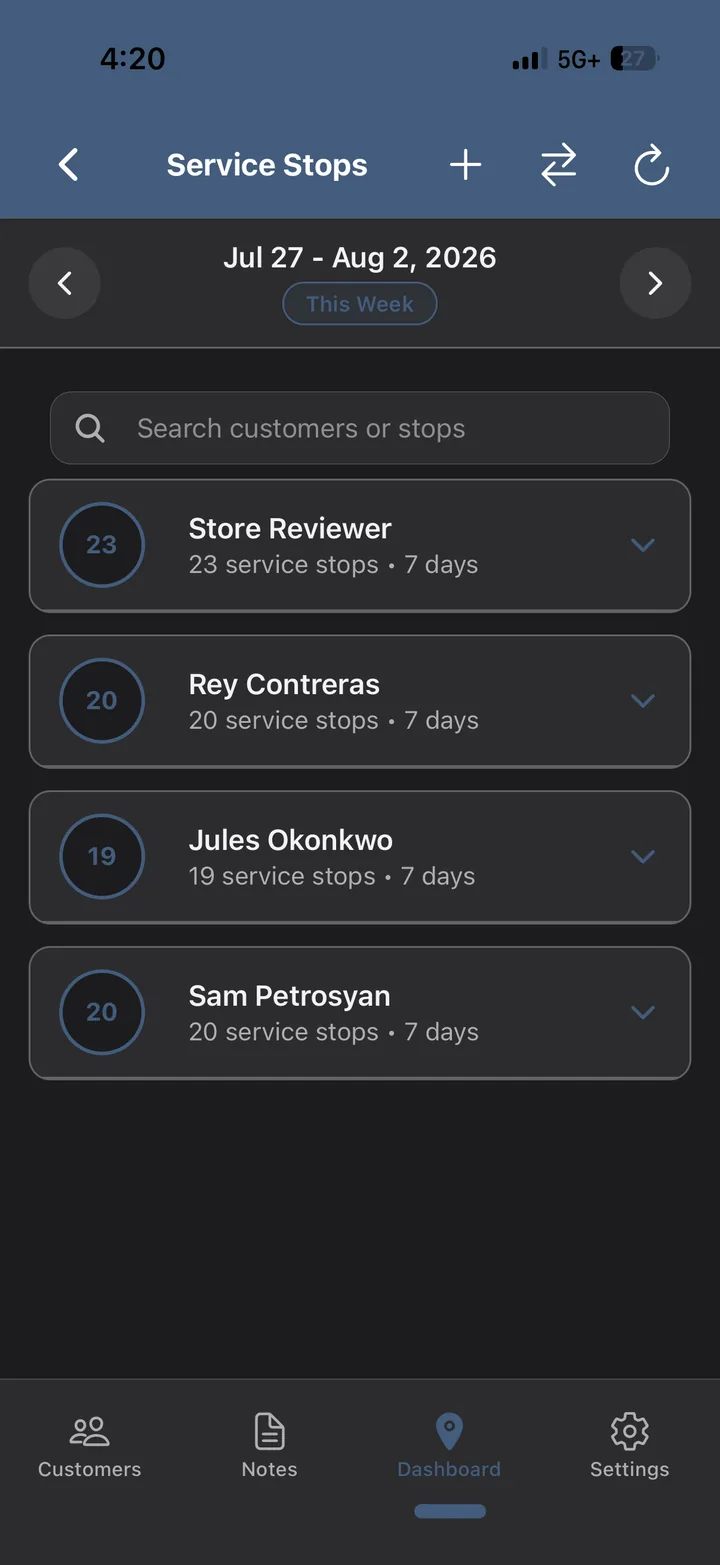
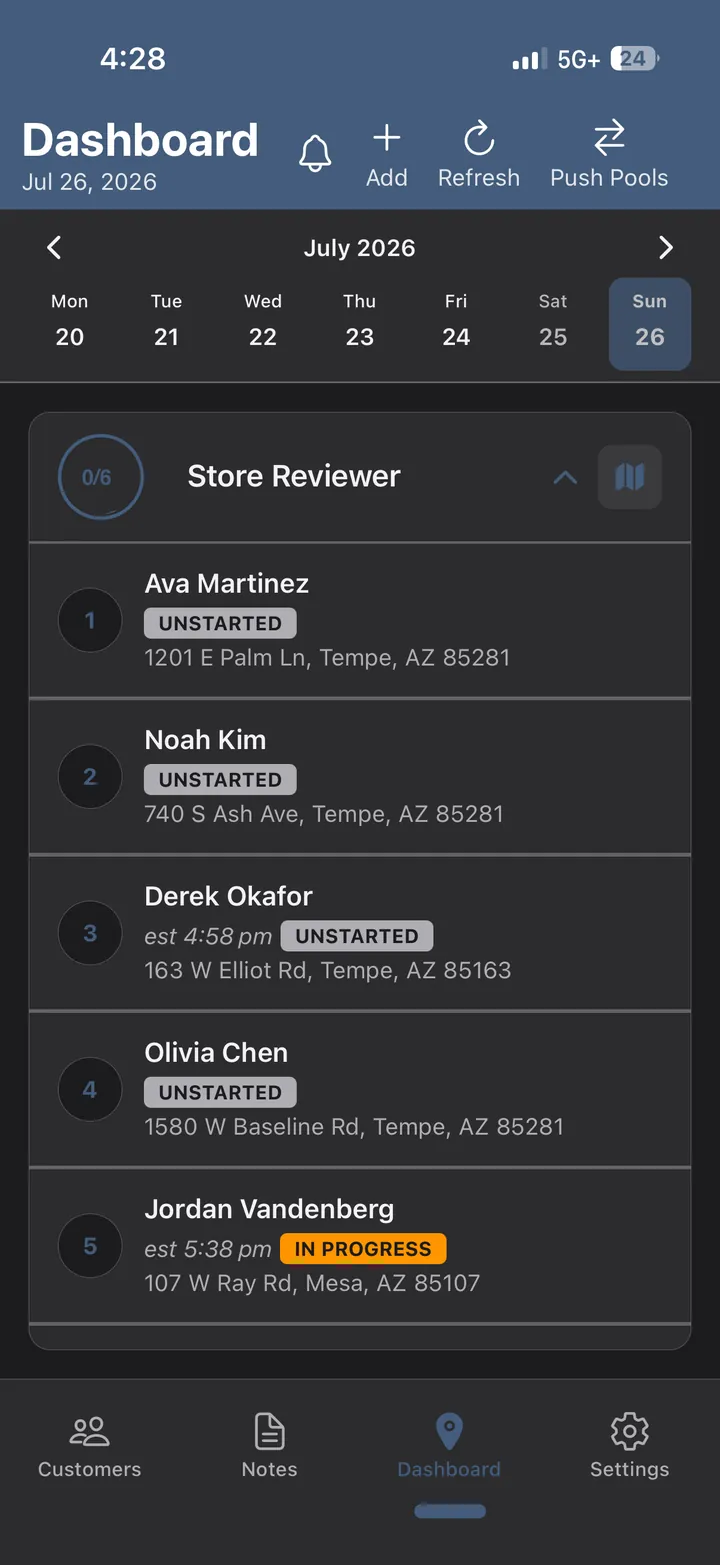
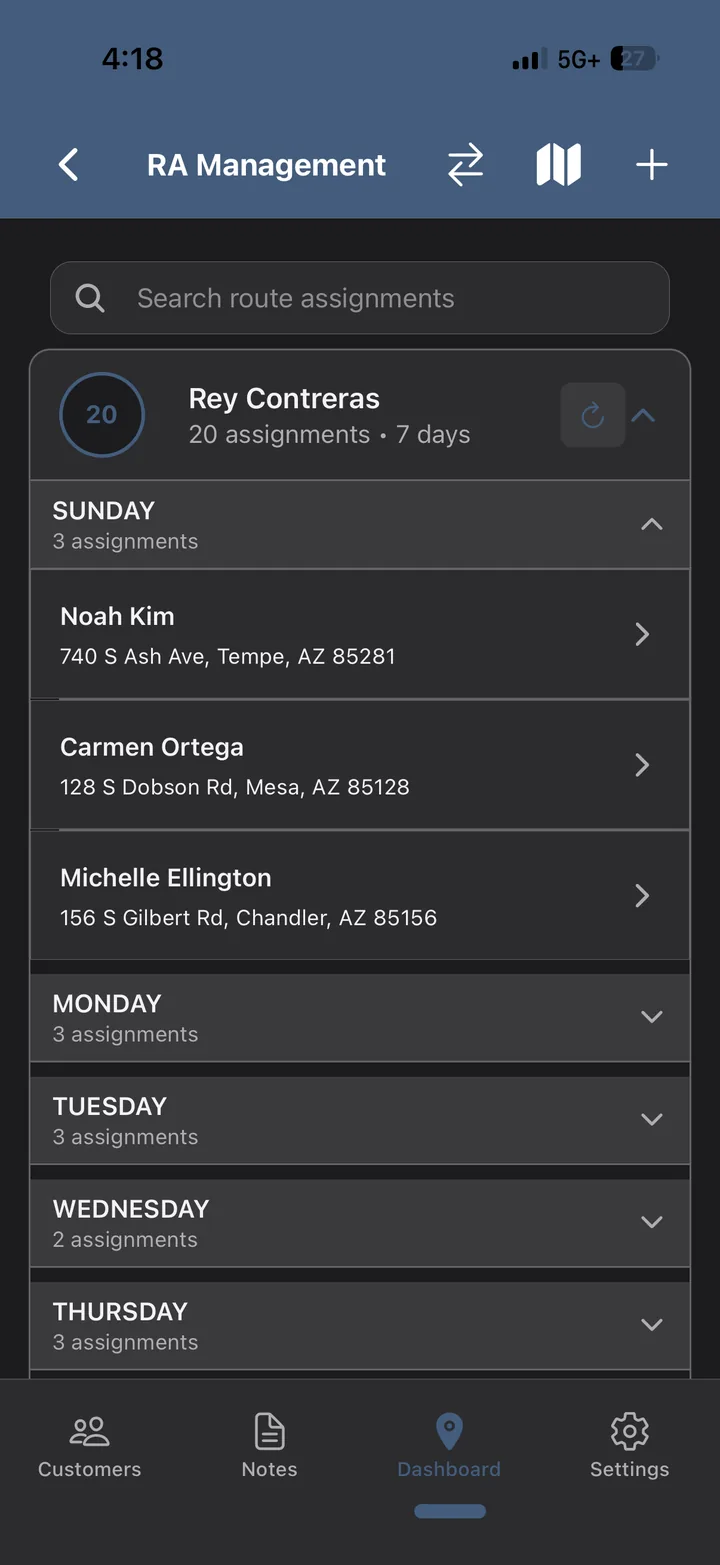
The whole crew's week on one screen
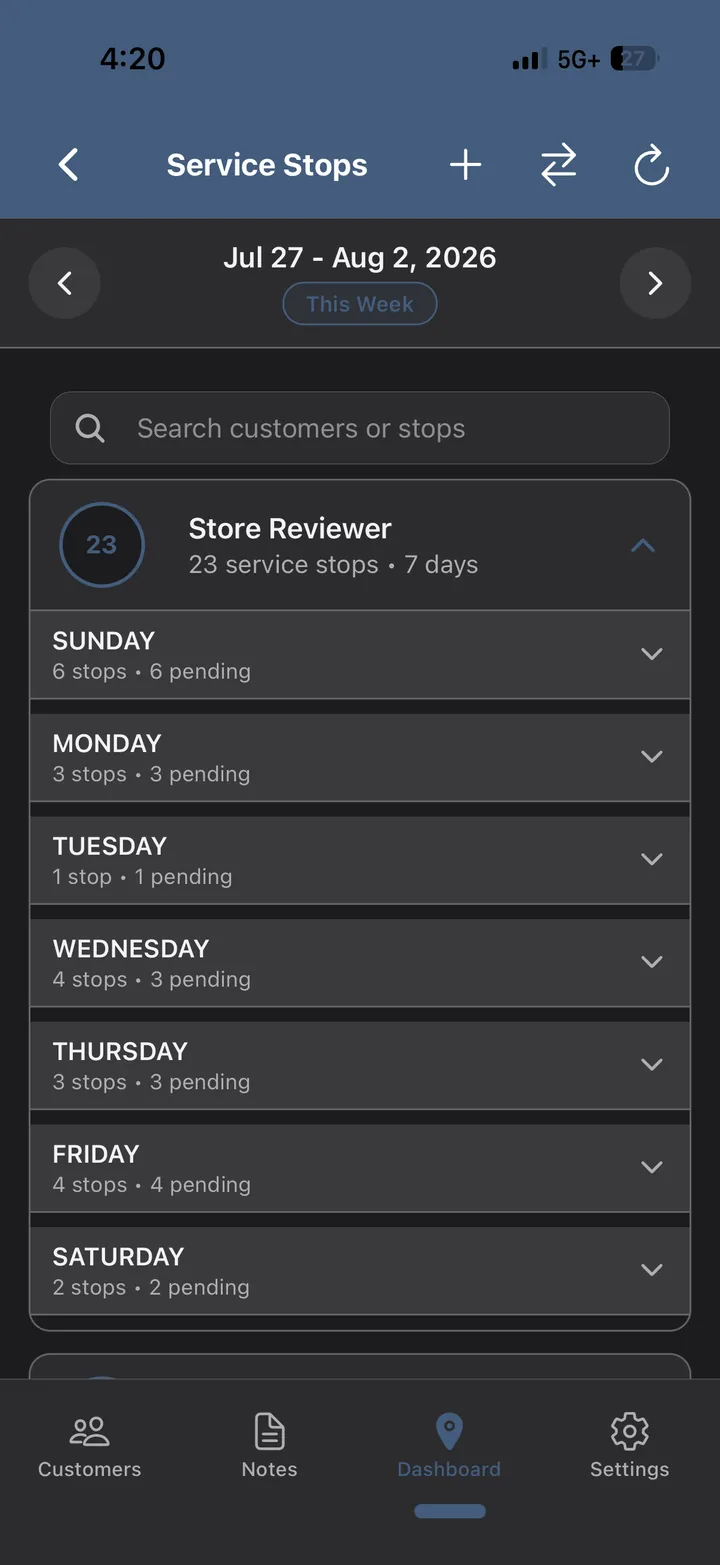
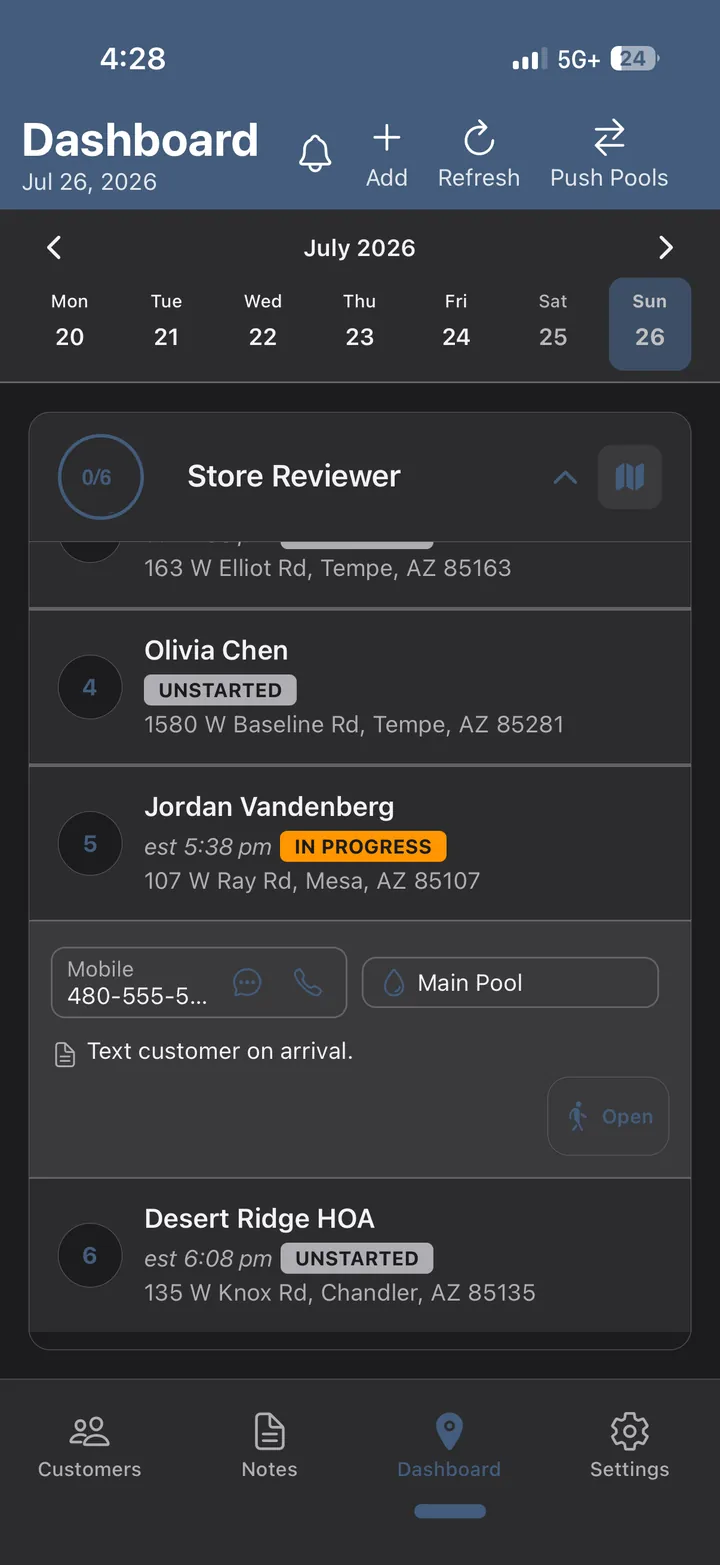
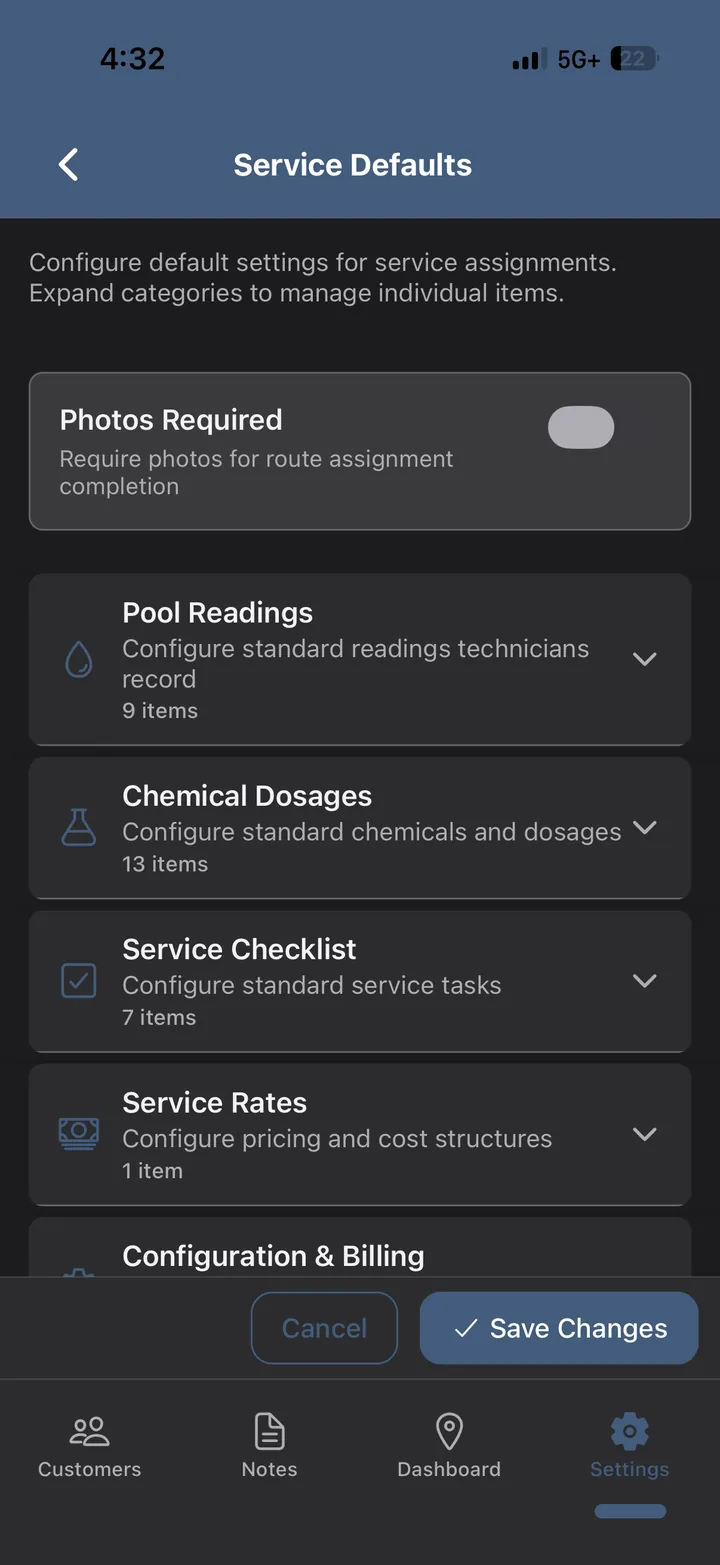
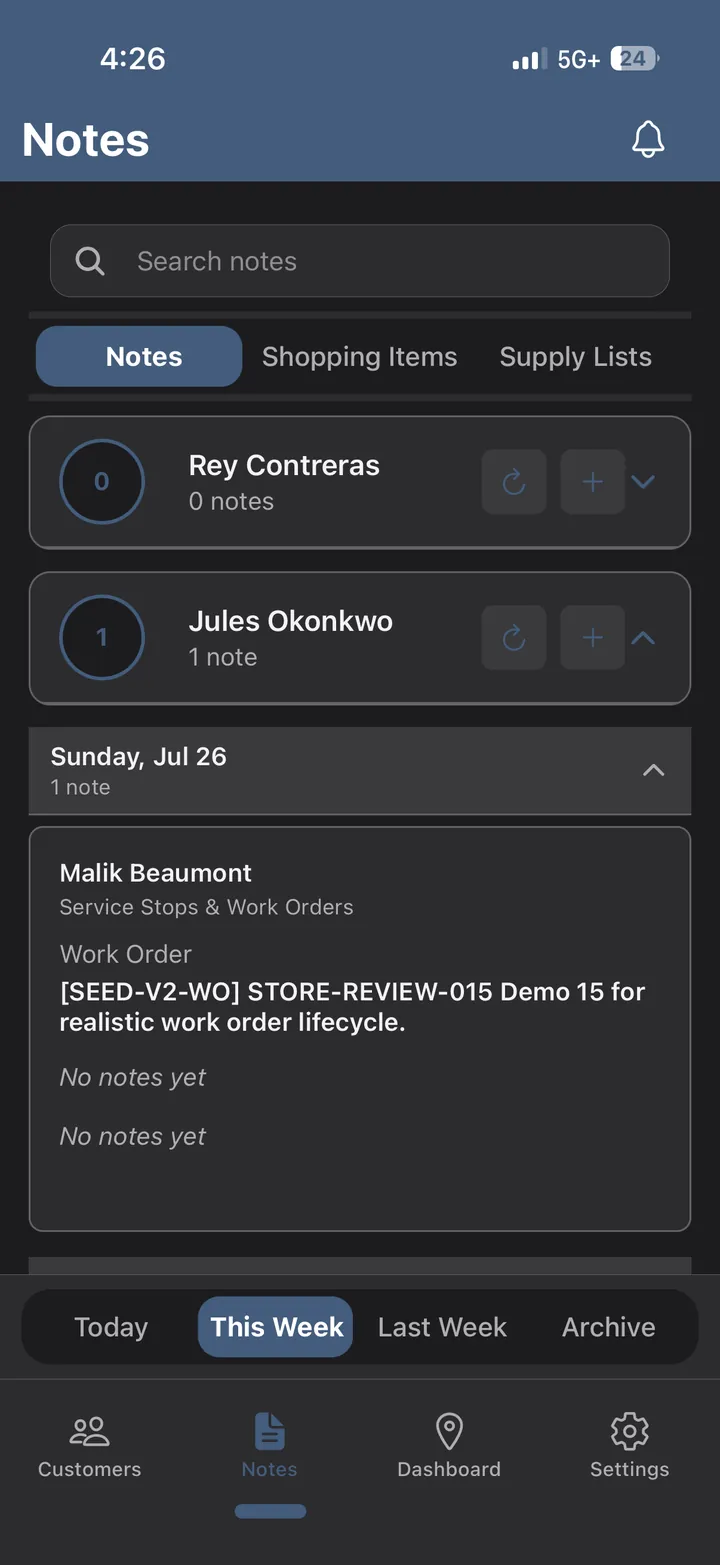
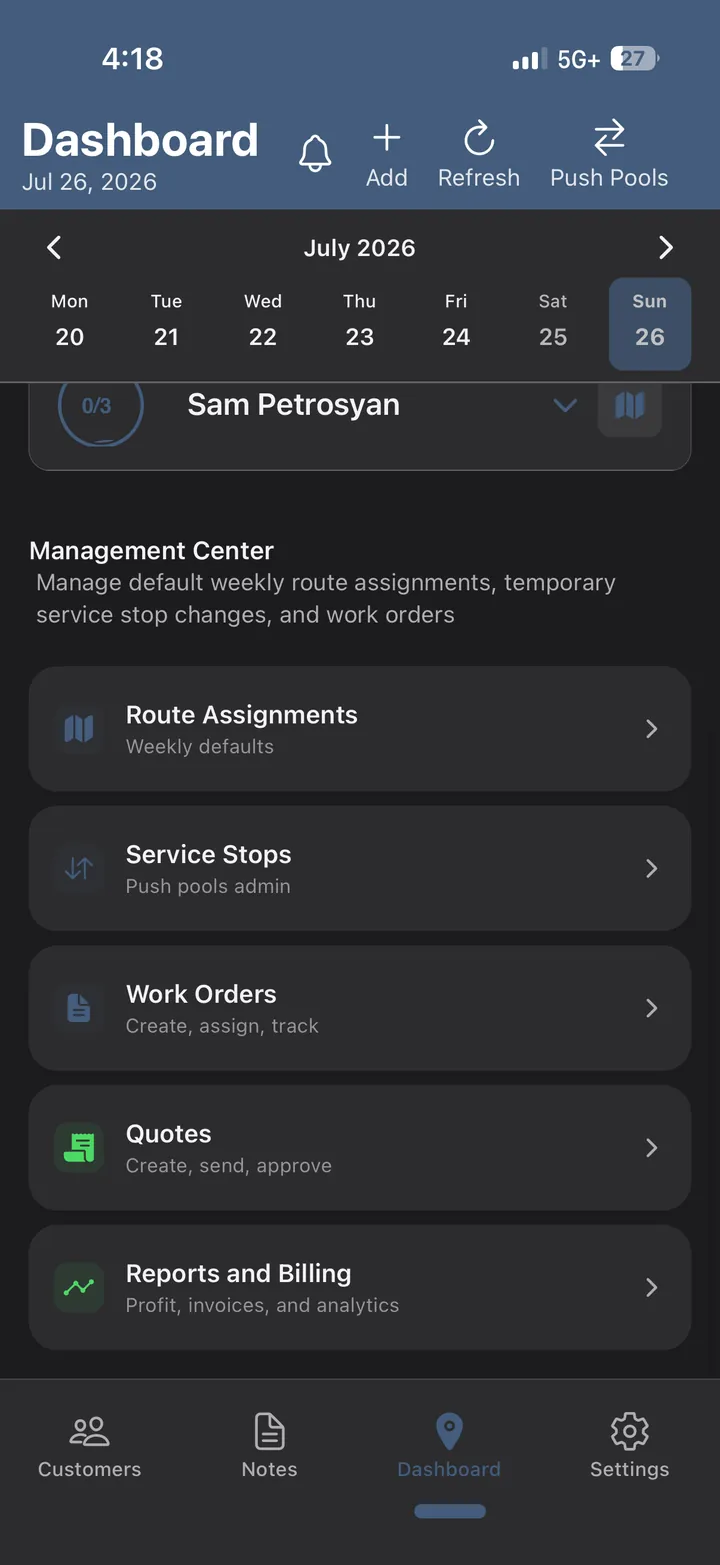
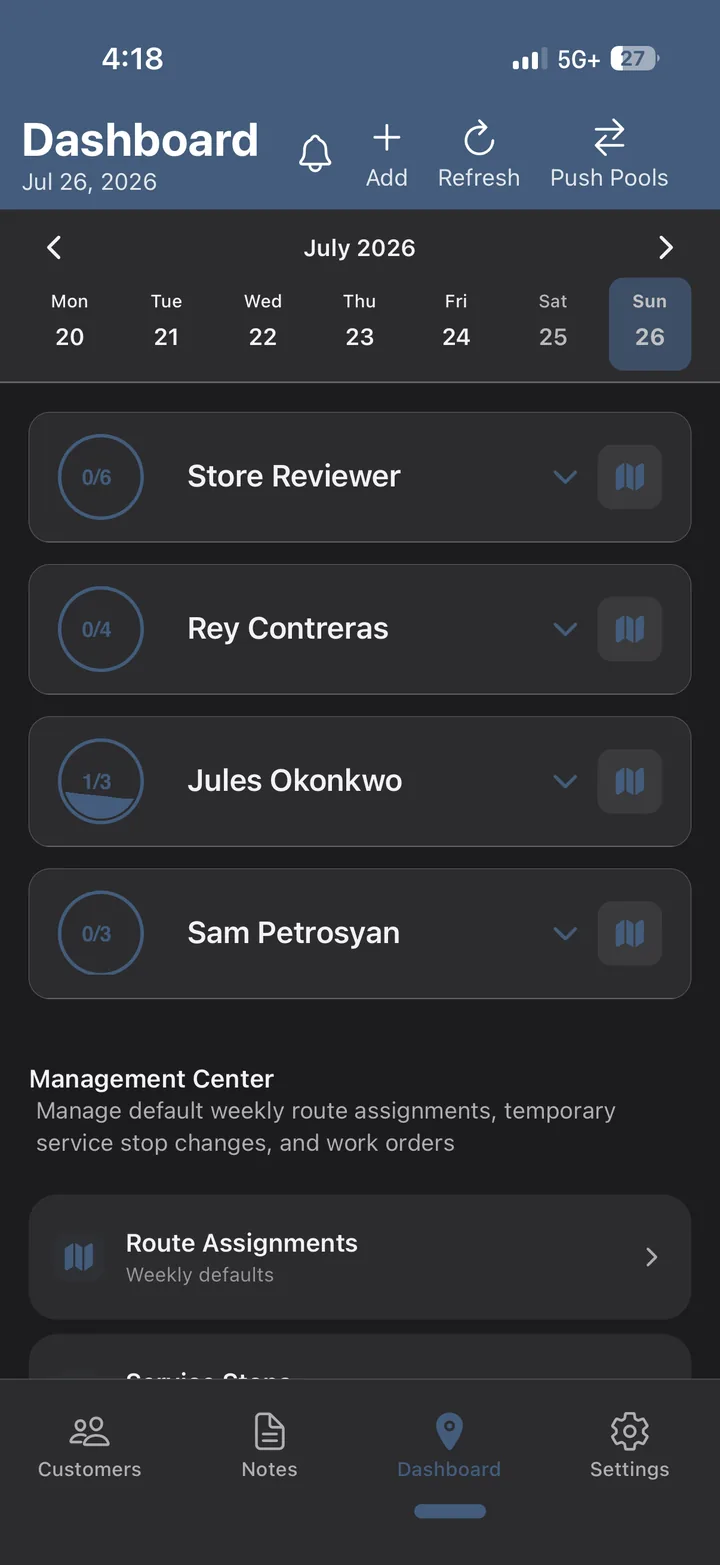
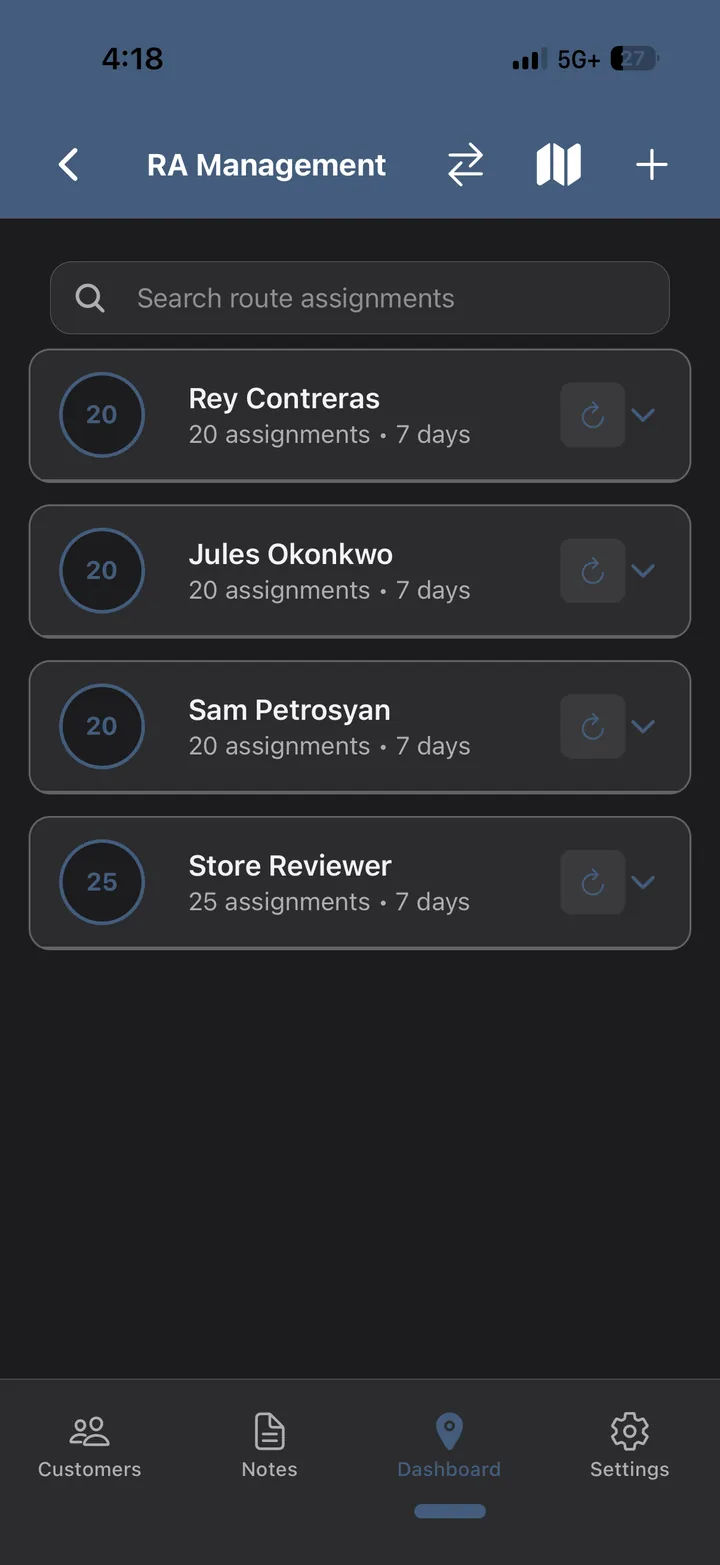
Every technician, every route, every day — with the weekly defaults underneath so the pattern holds without anyone rebuilding it each Monday. Progress rings show what is actually done, not what was planned.
- Weekly route assignments as the default pattern
- Per-tech counts and completion at a glance
- Drill from the crew view into one tech's whole week
For the office: you stop asking who went where. For the business: the schedule is a thing that exists, not a thing in someone's head.
2
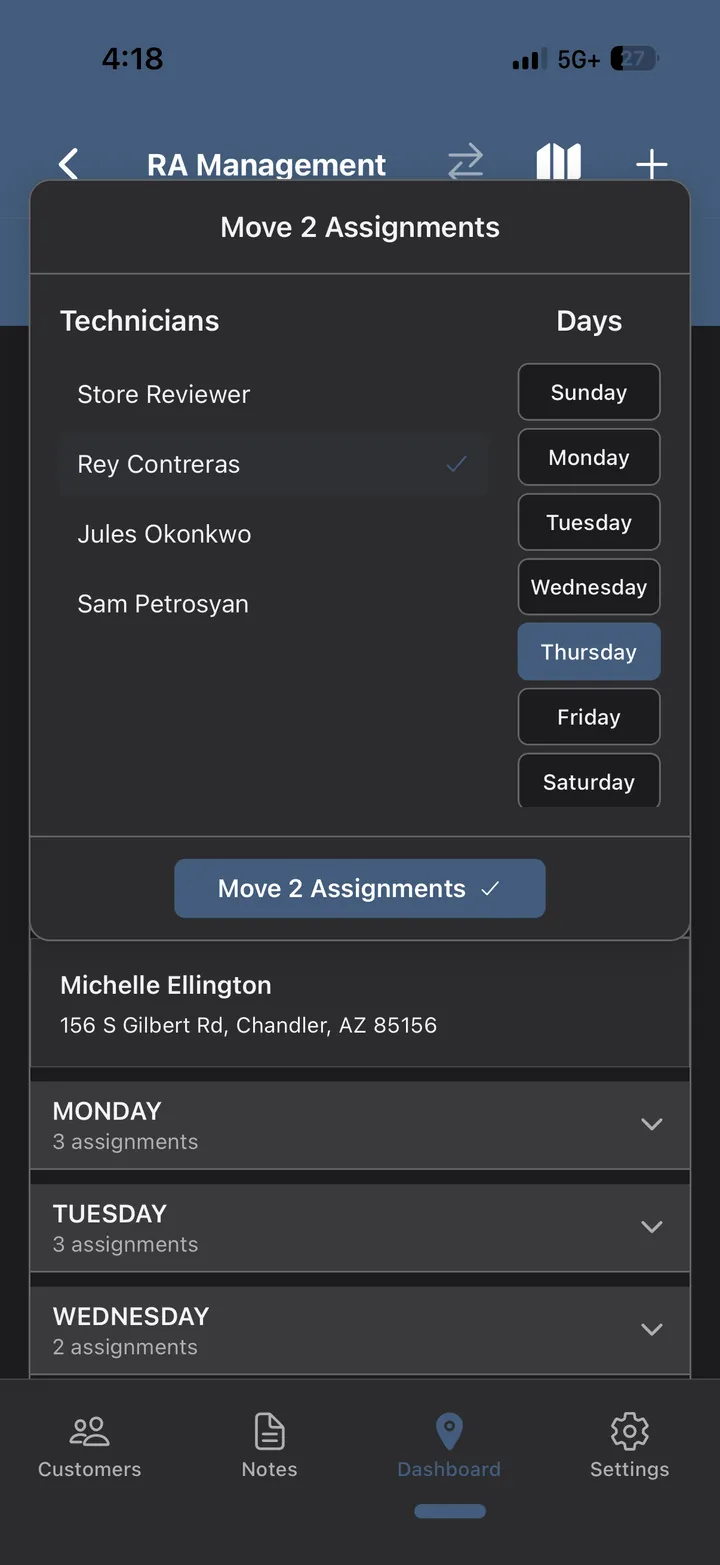
Move work without rebuilding the week
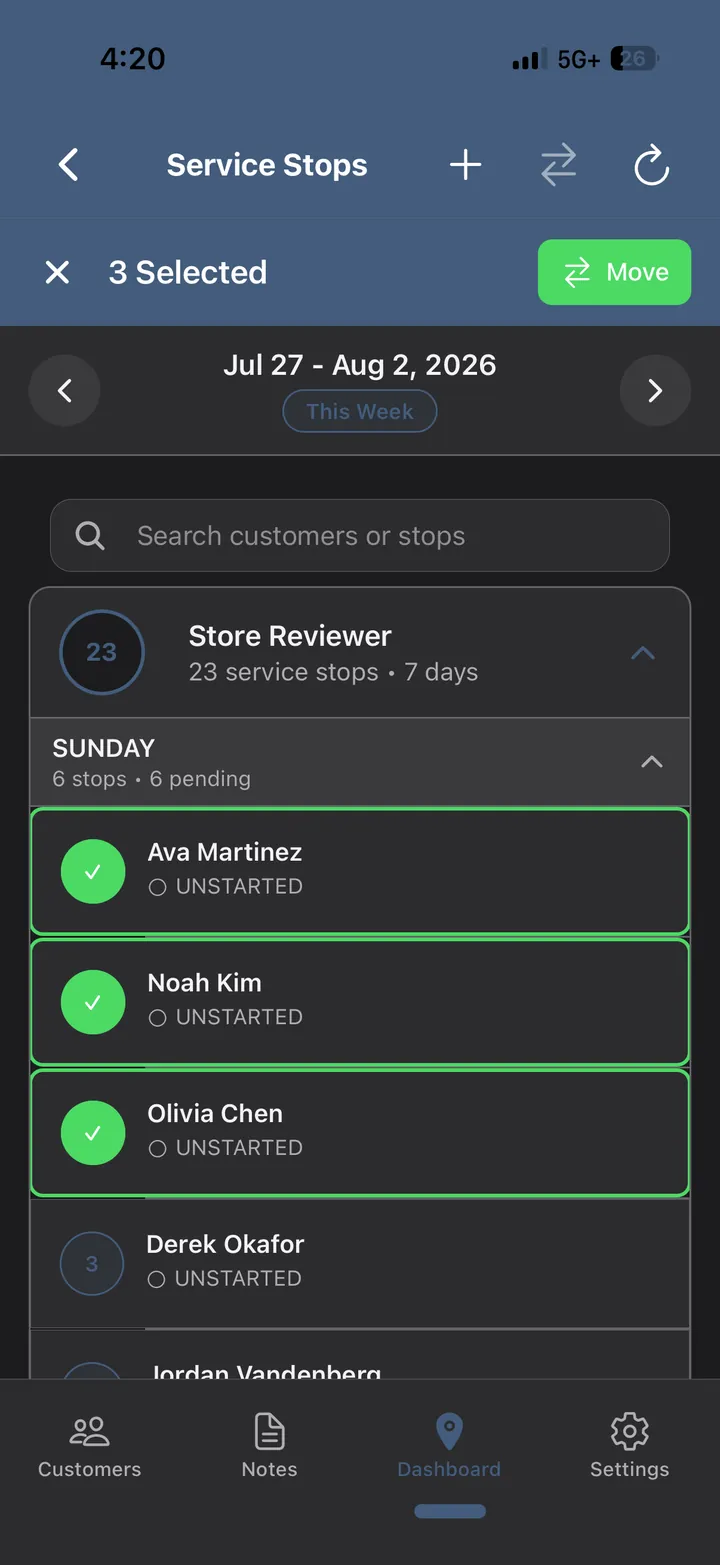
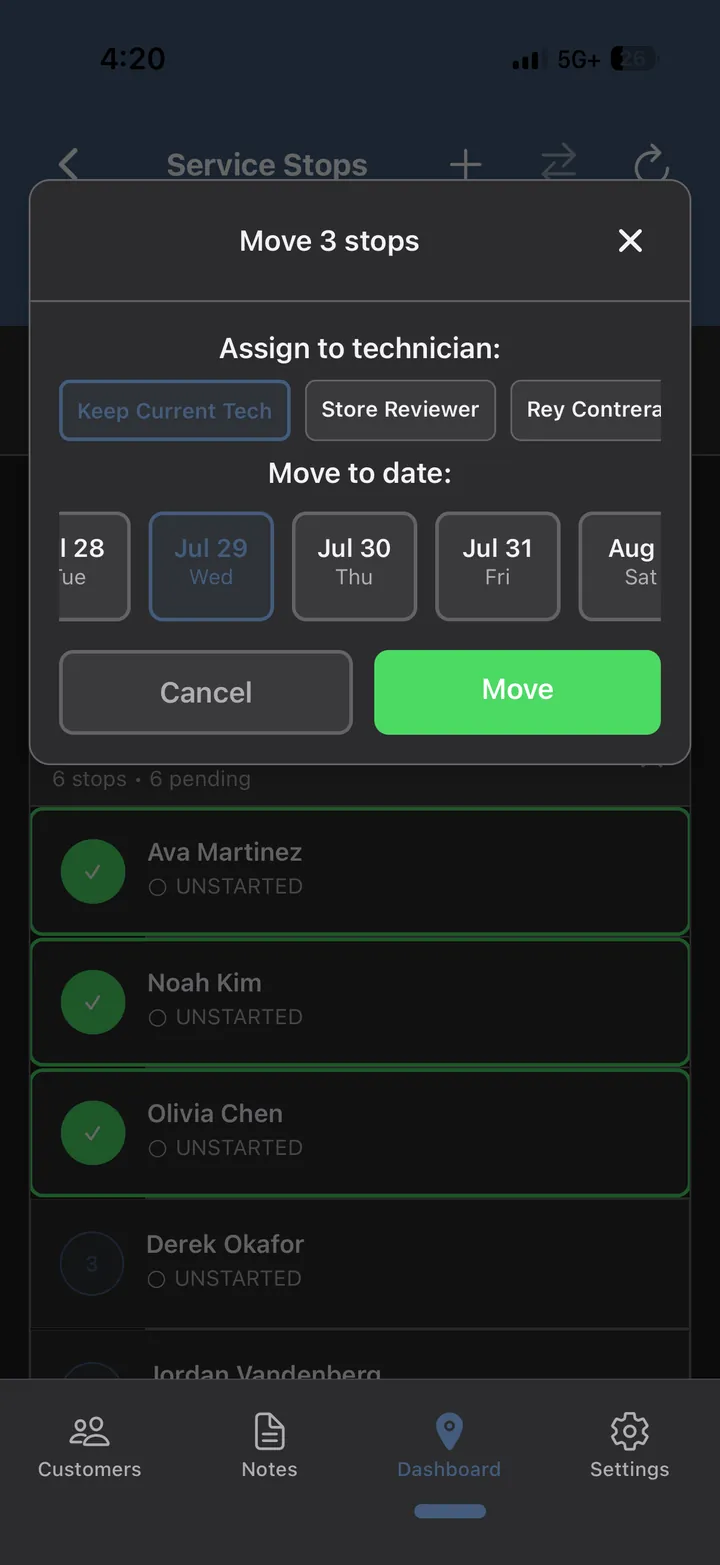
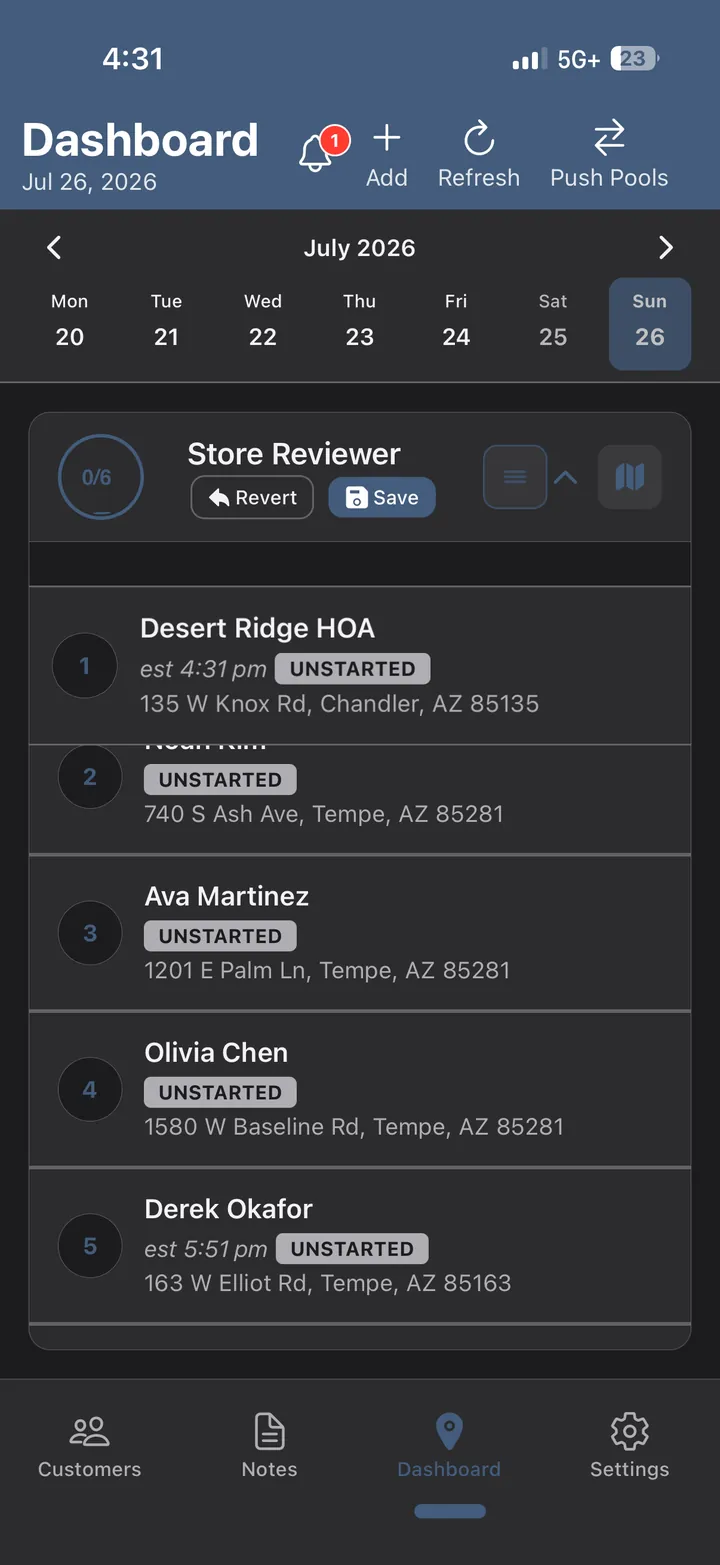
Someone calls in sick, a gate is locked, a customer asks for Thursday. Select the stops, pick a tech and a date, move them. The weekly defaults stay intact underneath — a temporary change stays temporary.
- Multi-select stops, move them in one action
- Reassign to another technician or another day
- Route assignments move separately from one-off stops
For the tech: the change is on their phone before they get back in the truck. For the business: covering an absence takes a minute, not an evening.